
The HubSpot-Threads integration allows you to automatically log your emails and phone-calls with your HubSpot contacts. To link your HubSpot account to your Threads account just following these simple instructions:
Step 1
In order to link your HubSpot account with your Threads account, just log into your Threads instance ([yourcompany].threads.cloud).
Step 2
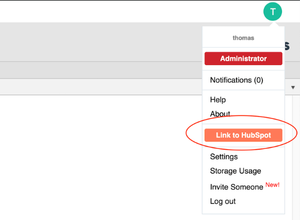
Hover over your initial in the top right hand corner and click the ‘Link to HubSpot’ button.
Step 3
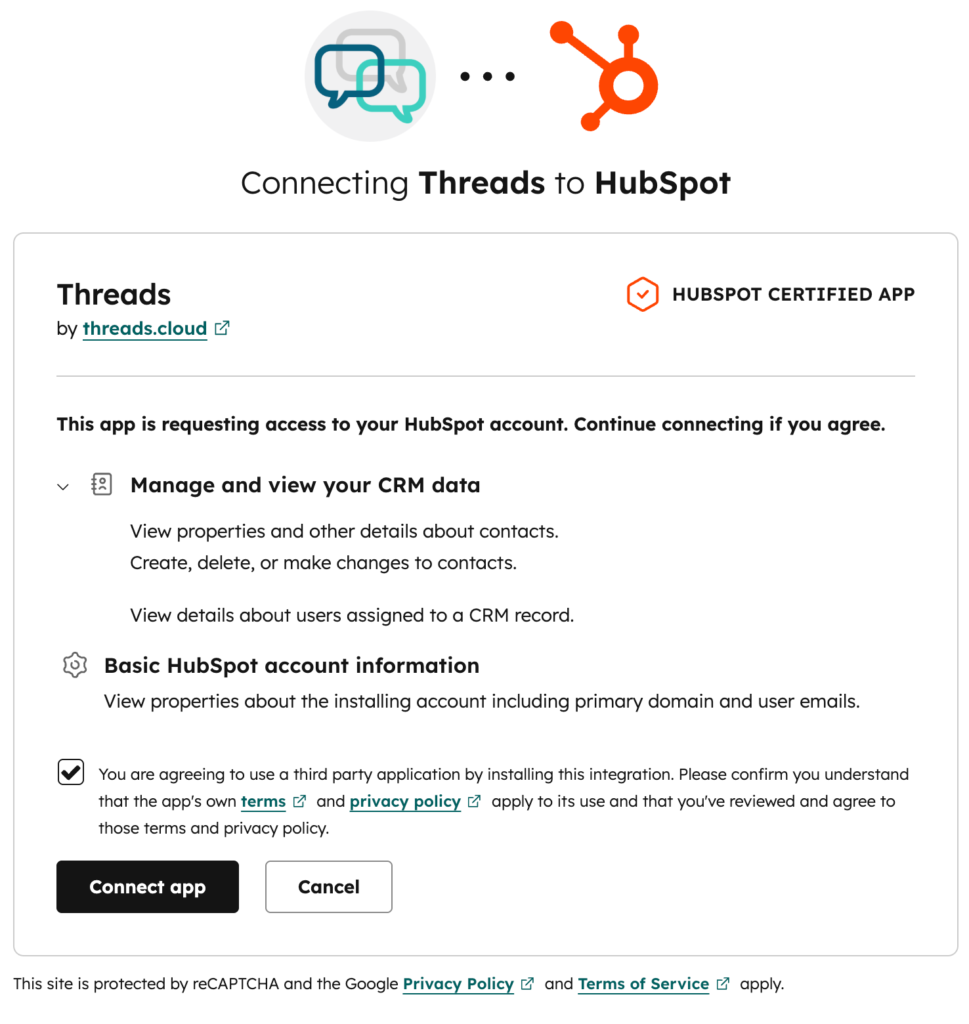
You will be redirected to a HubSpot Oauth screen where you will have to grant permission for Threads to access your Contacts and Engagements.
If you have more than one account associated with your HubSpot login, then select the HubSpot account you wish to use.
Step 4
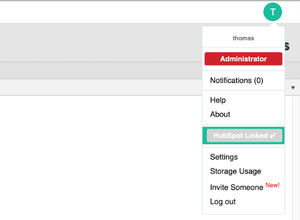
A confirmation message will pop up and you will be redirected back to Threads.
It’s that easy! If you have already linked you email inbox you will start seeing emails appear in HubSpot within 5-10 minutes.
Configuration & Usage
There is no requirement for manual configuration with the HubSpot integration in Threads, but it is important to note that Threads does not automatically create contacts in HubSpot, so you will have to ensure your HubSpot contacts are up to date for your emails to correctly sync to the correct contacts.
Using the Threads app to sync emails to HubSpot
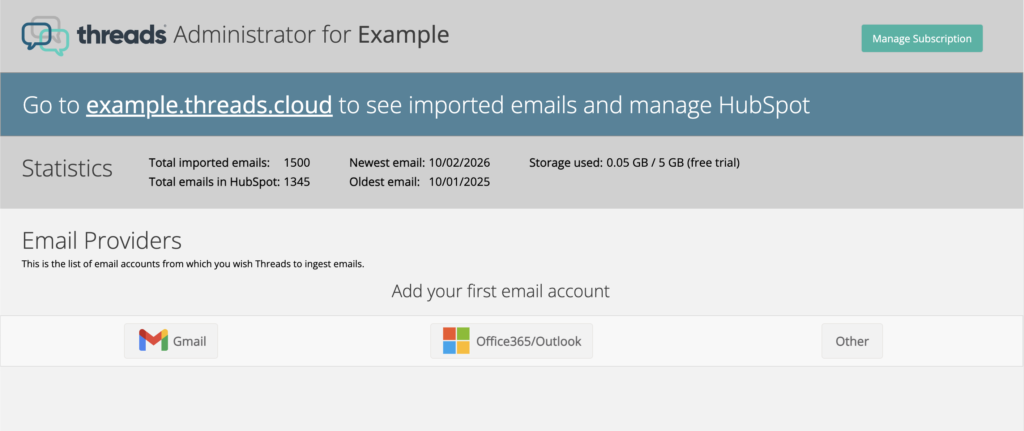
In order to see your emails in HubSpot your email accounts first need to be added to Threads. Within Threads Administrator select your email provider, for Outlook users you will be directed to a link to log into your Outlook or Office365 account using Microsoft’s OAuth. This link can also be forwarded to a colleague to add other users email accounts. If you are unsure we can send you a bespoke link that automatically adds your email to Threads please contact sales@threads.cloud.
For a Gmail user you can find our step by step guide for adding a Gmail account here.
Once your Threads account is linked to your HubSpot account, any email in your Threads account that involves existing contacts in your HubSpot account will be automatically pushed in the timeline of said contacts. The sync is continuous and retro-active, meaning when you add a new contact, any interactions involving that contact that were previously added to Threads will automatically be added to HubSpot as well.
Tracking Threads activity from your Administrator page
Within Threads Administrator you can see how many email accounts are synced and how many emails per account have been ingested and synced to your HubSpot contacts.
Uninstalling the Threads app for HubSpot
How to uninstall from HubSpot
You can at any time revoke Threads permissions to your HubSpot account by going into your HubSpot account, in Settings -> Integrations -> Connected Apps, and selecting Threads to Uninstall.
How to uninstall from Threads
Alternatively you can also disconnect HubSpot from the Threads Administrator which will trigger HubSpot to remove the app.
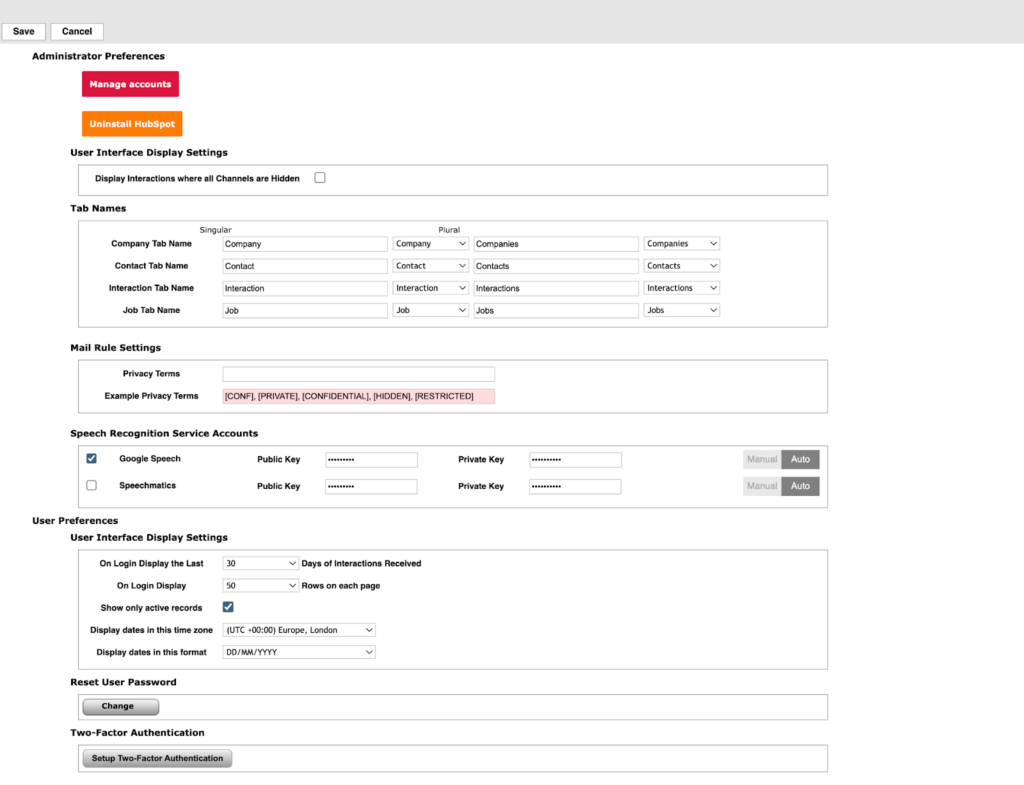
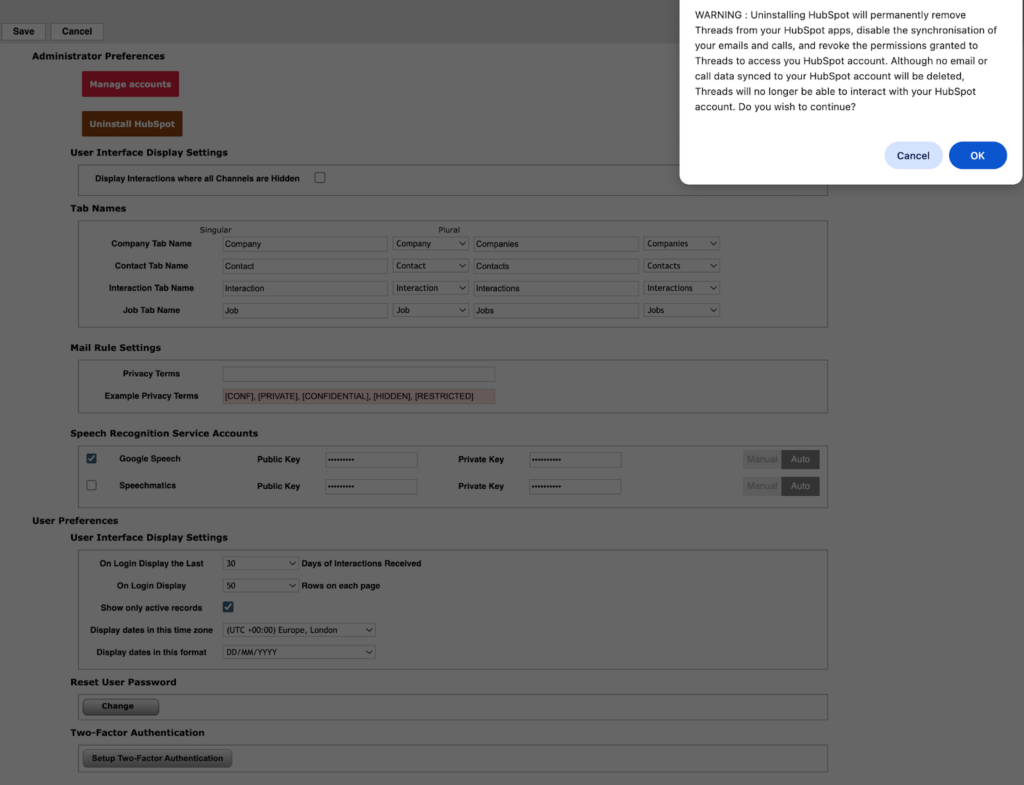
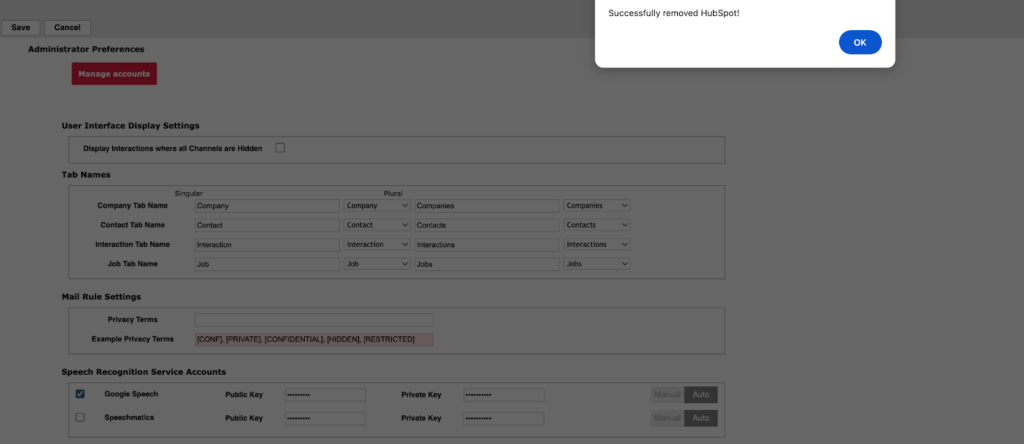
When uninstalling the Threads HubSpot app, Threads will no longer have access to your HubSpot account. You can reconnect at any time by following the Install section of this guide again, which will allow you to resume your sync as normal. No emails or calls will be deleted from your HubSpot account when you uninstall the Threads app from HubSpot.
Data Removal
At any point in time, you can request a complete removal of anything that was inserted by Threads into your HubSpot account by contacting support@threads.cloud. Please note that this action requires an active link between your HubSpot account and your Threads account, and can take up to 48h to complete.
Technical Support
You can reach technical support for your integration by contact support@threads.cloud
Our team will be happy to provide assistance as well as guidance, tailored to your needs.